Sequencing
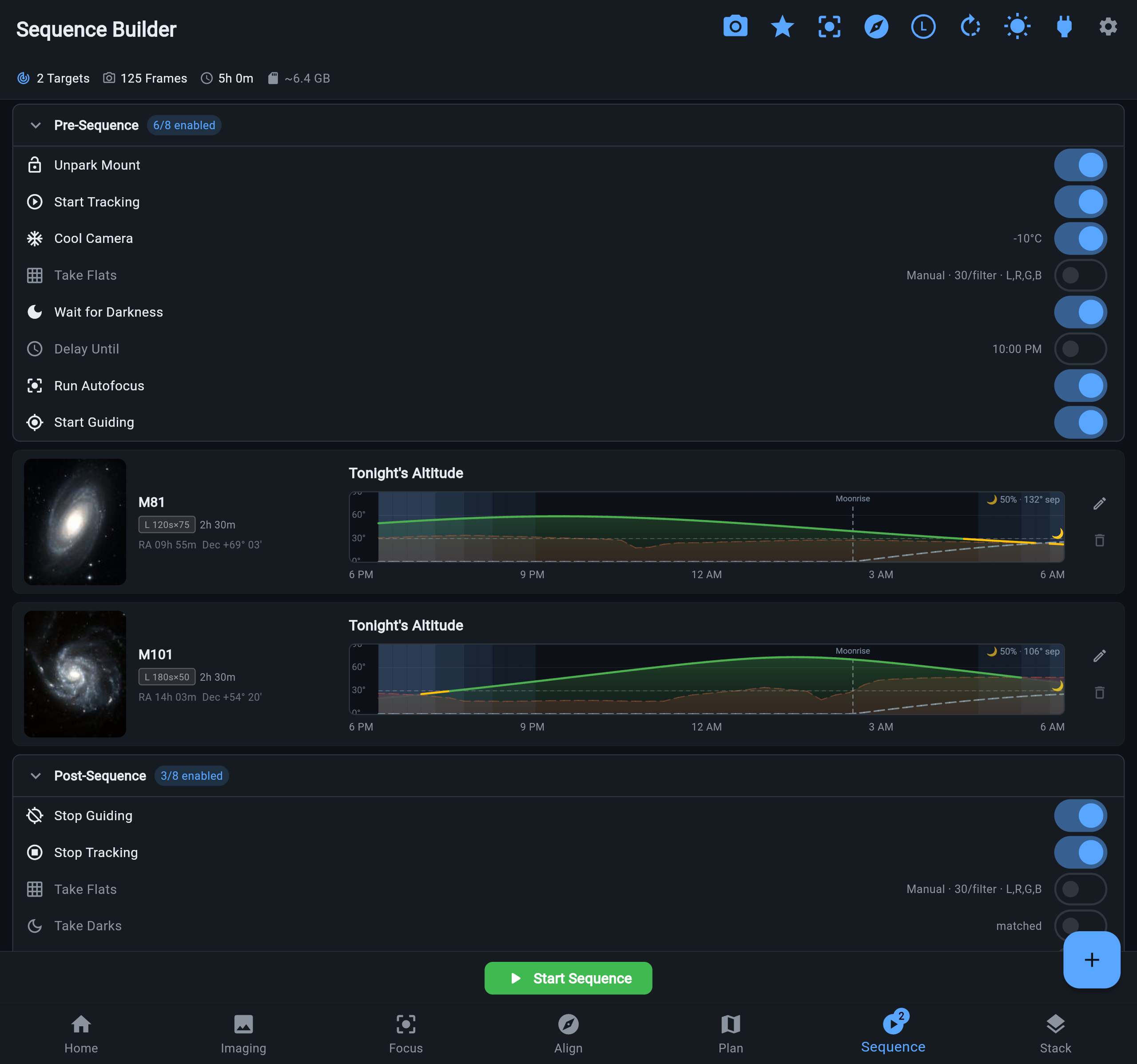
The Sequencing screen is where you build and run automated capture plans: one or more targets, each with its own filter and exposure plan, executed unattended — slewing and centering on each target, guarding every frame against bad guiding, handling meridian flips, refocusing when conditions change, and shooting calibration frames on the way in or out.
The sequence runs on the rig
Section titled “The sequence runs on the rig”When you tap Start, the plan is handed to the rig computer and executes there. Your phone, tablet, or browser is just a window into it:
- Close the app, lock your phone, lose Wi-Fi — the night keeps shooting. Nothing about the run depends on a connected client.
- Reconnect from any device and the live state is right there: current target, frame counts, status, warnings. Everyone connected sees the same run, because the rig owns it.
- While a plan is running, a sequence-active pill stays visible in the app so you always know the rig is busy — even from other screens.
Adding targets
Section titled “Adding targets”Each sequence is a list of targets, executed top to bottom. A target is a sky object identified by name and J2000 coordinates.
- From the Sky Atlas. Find an object on the Plan screen, tap it, and choose Add to Sequence. Name and coordinates fill in automatically — including targets from imported target lists.
- Manually. Tap the add button on the Sequencing screen and enter the target name, RA (hours/minutes/seconds), and Dec (degrees/minutes/seconds).
Reorder targets by dragging, or remove them by swiping.
Multi-filter configuration
Section titled “Multi-filter configuration”Each target has one or more filter entries:
| Parameter | Description |
|---|---|
| Filter | The filter to use, shown with your filter wheel’s slot names and colors. |
| Exposure | Duration of each sub-exposure in seconds. |
| Frame count | Number of sub-exposures to capture with this filter. |
| Gain | Camera gain for this filter (useful for narrowband filters that need higher gain). |
Tap a target card to expand it and edit filter entries. Color-coded filter chips give a quick visual summary of the plan.
Auto frame count
Section titled “Auto frame count”Instead of a fixed number of frames, any filter entry can use Auto Frame Count: ARIS calculates how many exposures fit in the remaining time before astronomical dawn at your site, accounting for exposure duration and per-frame download overhead. It is ideal for single-target, shoot-until-dawn sessions.
An estimate you can trust
Section titled “An estimate you can trust”The builder’s total-time readout prices what a night actually pays, not just exposure × count:
- Camera readout and download per frame, from per-camera measurements. At 60-second subs, readout alone is the difference between “1h 0m” and a real 1h 5m.
- Slews and centering per target, filter changes, dither settles, and the autofocus runs it can predict — including filter-change autofocus only for filters that genuinely lack a measured offset.
- What can’t be priced honestly — cooling to setpoint, waiting for darkness, auto-exposed flats — is listed as untimed rather than silently guessed, so the estimate never quietly promises a night that doesn’t fit.
Once the sequence starts, the rig computes time remaining from its live state — actual position, actual settle behavior, the work actually left — and that is the ETA the app shows while running.
Pre-sequence commands
Section titled “Pre-sequence commands”A plan can begin with preparation steps that run before the first slew:
- Start guiding — starts PHD2 and acquires a fresh guide star at the current position, so the run never begins unguided by accident.
- Cool camera — kicks the cooler toward your camera-settings target and moves on immediately. Cooling runs in parallel with the slew and centering; the first exposure simply waits until the sensor reaches its setpoint.
- Unpark / start tracking, wait for darkness (holds until the sun is far enough below the horizon at your site), and calibration steps (below).
Matching post-sequence commands — park, warm the camera, stop guiding — run after the last target completes.
At each target: center and solve
Section titled “At each target: center and solve”Arriving at a target is closed-loop, not dead reckoning. The rig slews, plate-solves a short exposure, syncs the mount, and re-slews until the target is actually centered in your sensor’s frame. The same centering pass runs again after a meridian flip. If a rotator is configured, the runner also rotates to the plan’s position angle once per target, so framing matches what you set up on the Plan screen.
The guiding-stability gate
Section titled “The guiding-stability gate”Before every frame, the runner checks that guiding is not just running but stable — no lost-star events within a settle window (10 seconds for short subs, scaling up to 30 seconds for long ones). If the guide star is flapping, the sequence holds at the frame boundary instead of exposing into ruined subs, and resumes automatically the moment guiding settles.
The policy is yours, and it is live-tunable in guider settings even while a hold is in progress:
- Require (default) — hold until stable; if the hold runs long, ARIS raises an alert and keeps holding rather than shooting garbage.
- Warn — hold briefly, then shoot anyway with a warning attached.
- Off — no gate (for unguided setups).
Meridian flip handling
Section titled “Meridian flip handling”When a German equatorial mount tracks a target past the meridian, it must flip to the other side of the pier. ARIS handles this automatically, and stops starting new subs as the flip point approaches so an exposure never straddles it.
-
Pre-flip pause. An optional delay before the flip begins.
-
Stop guiding. The guider is stopped before the mount moves.
-
Confirm tracking, then flip. The runner verifies the mount is tracking (some mounts silently refuse a flip slew otherwise), then slews to the target on the opposite pier side — with automatic retries if the mount doesn’t take it.
-
Witness the pier side. ARIS reads the mount’s reported pier side to confirm the flip actually happened, rather than trusting the slew.
-
Re-center. A plate-solve pass corrects pointing so the target lands back in the center of the frame. If a rotator is configured, the runner applies the small post-flip trim designed to hold your framing through the flip.
-
Resume guiding. ARIS restarts the guider and acquires a fresh guide star on the new side of the pier.
-
Auto-focus. Optionally runs an autofocus pass after the flip.
A timeout protects against flips that hang: if the mount does not complete the maneuver in time, ARIS aborts safely rather than tracking into the pier.
The protection extends past the flip window. Some mounts don’t flip on their own — their firmware simply halts tracking at its meridian limit. When that happens, ARIS raises a meridian warning and stops the guider: a guider left looping against a halted mount rails its corrections and shreds the guide-star lock while every readout looks normal. Stopping it turns a silent failure into a clean, visible one.
In-sequence autofocus
Section titled “In-sequence autofocus”The runner can trigger autofocus automatically: at sequence start, after a meridian flip, on filter change (when that filter has no stored offset), when the focuser temperature drifts by 2 °C, or every 60 minutes. Guiding is paused and resumed around each focus sweep, and per-filter focus offsets apply automatically. All triggers are configurable in focuser settings.
Calibration frames
Section titled “Calibration frames”Darks, flats, and bias frames are first-class sequence steps, so a plan can end the night with its own calibration set:
- Flats auto-expose against your flat panel to hit a target brightness — no manual exposure hunting.
- Darks and bias run at your chosen exposure and count, waiting for camera cooling first.
- Every calibration frame waits for the previous exposure to fully complete before starting the next, so nothing stomps an in-flight download.
Running and editing a sequence
Section titled “Running and editing a sequence”While running, the screen shows overall progress and time remaining, the current target, per-filter frame counts, and real-time status (exposing, downloading, slewing, flipping, waiting for guiding).
You can pause (the current exposure finishes first), resume, or stop. You can also edit the plan live: change exposures, frame counts, or filter plans on upcoming work, or remove targets that haven’t run yet. The rig validates each edit — fields the runner is actively using are locked — and every accepted change is echoed to all connected devices.
Built for unattended nights
Section titled “Built for unattended nights”- Checkpoints. The rig saves its progress after every frame and phase change. After a power cut, the sequence resumes automatically on reboot — and the resume is sun-gated: the rig will only resume unattended when it can prove the sun is still below civil darkness at its site. Otherwise it holds and asks you first.
- Disk guards. Free space is checked before every frame; you get a low-disk warning early, and the sequence stops cleanly rather than filling the disk mid-exposure.
- Cover guard. If a flat-panel cover is closed when a light frame is about to start, the runner opens it automatically — no more shooting into a closed cap. Starting or resuming a sequence is gated the same way: a cover that positively reports closed blocks the start with a clear prompt instead of letting the whole pre-flight — slew, centering, guide acquisition — run blind against a lid. Covered calibration runs can still proceed deliberately.
End of night
Section titled “End of night”- Safe state on failure. If an unattended sequence fails, Rig Guardian returns the mount to your configured safe state — Home, Park, or tracking off — instead of leaving it tracking into the pier.
- Deep stack handoff. When a sequence finishes with enough subs, the rig automatically re-stacks the night into a master FITS and stretched JPEG — see Overnight Deep Stacking.
- Push notifications. With remote access paired (beta), sequence complete, stopped, and failed events push to your phone’s lock screen.
Planning integration
Section titled “Planning integration”The Sequencing screen works hand-in-hand with the Sky Atlas. Add to Sequence on the Plan screen creates a pre-filled target, and sequence cards show the target’s reference image and altitude chart so you can verify visibility without switching screens.